In Part 1, I described how my Linux/appliance environment transitioned from a manually managed OpenSSL CA to an intermediate step-CA, with automatically renewed short-term certificates. This second part covers the other half of my personal infrastructure: the Microsoft environment, with its own AD CS certificate authority, and the project that has kept me busy these past few days—securing RDP authentication across two Active Directory domains using machine certificates that are automatically issued and renewed.
> Having two PKIs within the same infrastructure might seem like redundancy that needs to be addressed. That’s not what I did, and I’ll explain why.
Why Two PKIs Instead of Just One
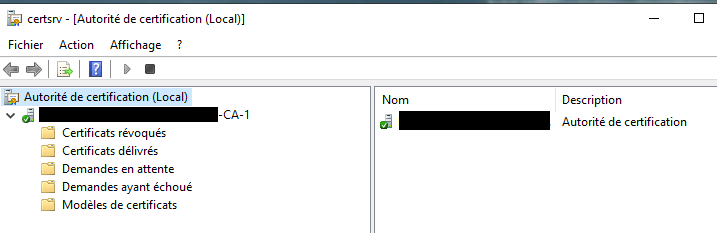
When I started the step-by-step project described in Part 1, a Microsoft certificate authority (AD CS, Enterprise Root, installed on an additional domain controller in my forest root domain) had already been running for quite some time. It had nothing to do with the need that prompted Part 1: it exists solely because Active Directory relies on it natively—distributing the root certificate as trusted to all domain computers via GPO, issuing machine certificates for LDAPS, and—the subject of this article—RDP authentication.
Once step-ca was up and running, the question naturally arose: should I merge the two worlds under a single authority? I decided against it, and I’m documenting this choice here because it’s the kind of decision you’ll regret if it isn’t written down in black and white somewhere.
Three reasons weighed in:
- AD CS’s native integration with Active Directory has no simple equivalent on the step-ca side. Machine autoenrollment, automatic distribution of the root certificate via GPO, and integration with certificate templates and their granular ACLs are mechanisms deeply embedded in AD. Reproducing these with Step-CA would have required custom tools, for a benefit that wasn’t really any greater than letting AD CS do what it already does.
- The use cases don’t really overlap. Step-ca serves Linux services and appliances with short lifecycles (90-day certificates, automated renewal via playbook). AD CS serves Active Directory’s internal needs with long lifecycles and a different trust logic (trust comes from domain membership, not from application enrollment).
- Separating the two limits the blast radius. If one of the two authorities is compromised or misconfigured, the other continues to function independently. A merger would have created a single point of failure for two ecosystems that, in practice, have almost no reason to trust each other.
The trade-off: two PKIs to maintain, two renewal policies to understand, and two places to check whether a certificate is still valid. This is a real cost, but I’d rather pay that cost than complicate an AD integration that works well as is.

The Project: Certificate-Based RDP Authentication Across Two Domains
My AD infrastructure isn’t a single domain—it’s a forest with a root domain and a child domain. Both host workstations and servers that I regularly connect to via RDP. Until now, these connections relied on the self-signed certificate that Windows generates by default for the Remote Desktop service—which works, but triggers a trust warning on every connection and has no connection to my internal certificate authority, even though it’s already in place and approved by all computers in the domain.
The goal of this project: to ensure that every workstation, server, and domain controller in both domains automatically presents an RDP authentication certificate issued by my internal AD CS, renewed without manual intervention, for the entire lifetime of the machine.
The Certificate Template
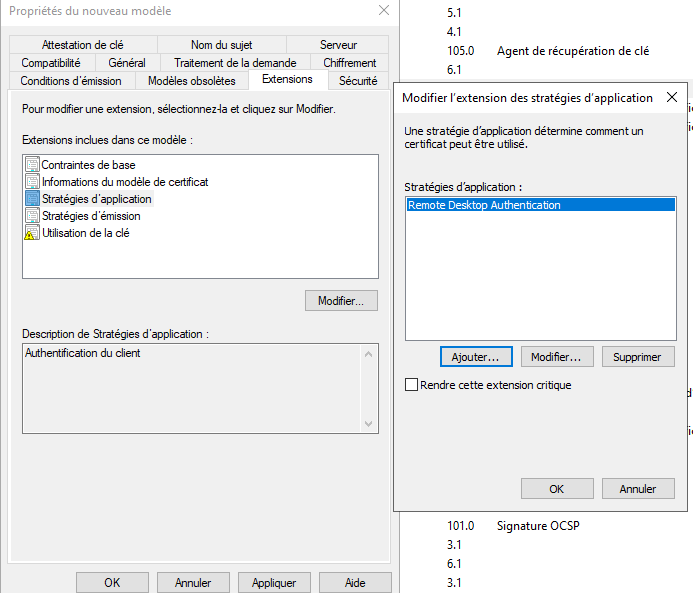
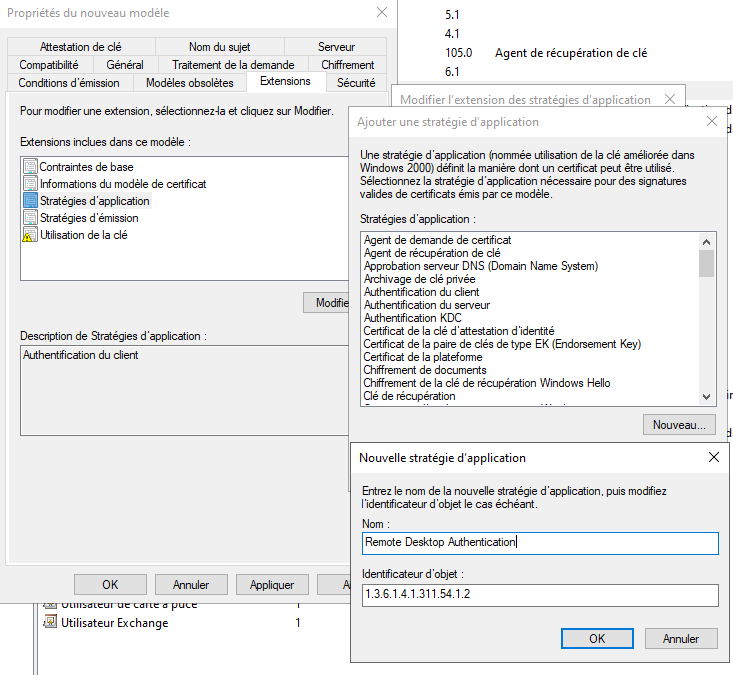
The certificate required by the Remote Desktop service is not a generic “Server Authentication” certificate (OID 1.3.6.1.5.5.7.3.1): Windows prefers a specific extended key usage (EKU), Remote Desktop Authentication, whose OID is 1.3.6.1.4.1.311.54.1.2. This is not a template provided by default in AD CS—you have to create it.
I duplicated an existing Computer-type template (never a User template—see below for the pitfall that cost me dearly on another project), then configured:
- the Remote Desktop Authentication EKU (
1.3.6.1.4.1.311.54.1.2) as the enforcement policy; - the subject name based on the machine’s DNS name (consistent with what the Remote Desktop service will try to match);
- a modern key storage provider (KSP), 3072-bit RSA key, SHA-256;
- most importantly: the display name of the template must be identical to the template name—a detail that seems trivial but is actually quite significant (see below).
The Remote Desktop Authentication EKU does not exist natively in the list of application policies offered by the console: you must create it manually, specifying its name and exact OID.

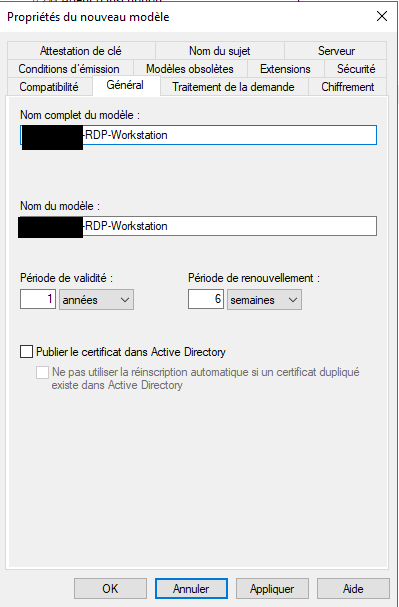
Since my AD is a two-domain forest, I duplicated this template once per domain rather than attempting to make it work across domains—in line with my general preference to avoid cross-domain dependencies when a native, domain-isolated solution exists. Certificate templates are stored in the Forest Configuration partition (and are therefore visible to all domains), but there’s nothing stopping you from duplicating one per domain to isolate the ACLs—which a quick look in ADSI Edit confirms: each domain does indeed have its own template.
Regarding the template’s ACLs, only the relevant computer groups (workstations and servers in both domains) have been granted the Enroll permission. Not Autoenroll—and that is the most important point of this article.

Once the template is configured, there is one step that is easy to overlook: explicitly enabling it on the certificate authority (Certificate Templates to Issue in certsrv.msc) before it appears as available for enrollment.

The SessionEnv service, not generic autoenrollment
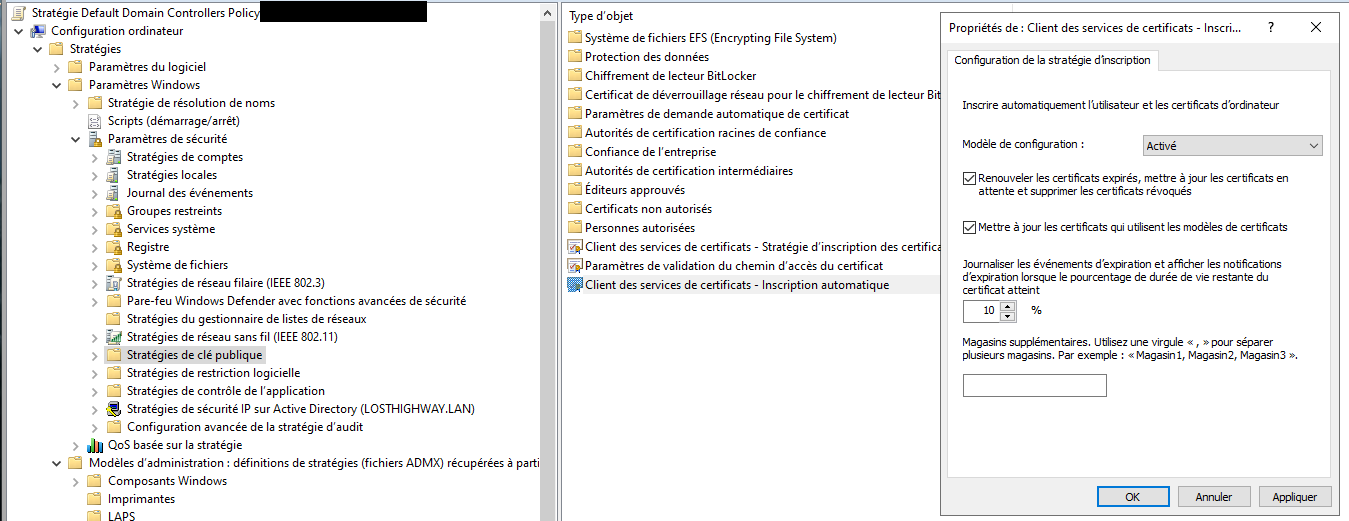
This is where it becomes counterintuitive if you’re used to thinking “certificate template = standard autoenrollment.” The enrollment of the RDP authentication certificate is not driven by the generic machine autoenrollment mechanism (Certificate Services Client - Auto-Enrollment, the one typically enabled in Computer Configuration → Policies → Windows Settings → Security Settings → Public Key Policies). Instead, it is managed by a dedicated mechanism specific to the SessionEnv service (the “Remote Desktop Configuration” service), which has its own enrollment and renewal cycle.
To clearly highlight the distinction, here is what the generic auto-enrollment GPO looks like—the one we are intentionally leaving out for this template:
The GPO to be configured is located in:
Computer Configuration → Policies → Administrative Templates →
Windows Components → Remote Desktop Services →
Remote Desktop Session Host → Security →
Server Authentication Certificate Template
Enter the name of the template here (which must be identical to the display name—hence the requirement mentioned above). Once this GPO is applied and the SessionEnv service is restarted, it periodically checks the computer’s certificate store, searches for a valid certificate with the expected EKU and issued from the designated template; if it does not find one, it triggers an enrollment request itself—without going through the generic autoenrollment pipeline.
Backed by documentation, several independent sources agree on a point I hadn’t initially anticipated: generic autoenrollment must not be enabled on this template. The specific reason, documented by Microsoft and specialized PKI consultants, is that the generic autoenrollment cycle archives the old certificate at the time of renewal, which SessionEnv does not handle in the same way—the service loses the reference to the certificate it was using, and the Remote Desktop service may find itself unable to present a valid certificate, resulting in TLS connection failures. The expected and documented behavior is: set a simple Enrollment permission on the template, and let the GPO above and the SessionEnv service manage the entire lifecycle—from initial issuance to renewal.


The Two Pitfalls That Wasted My Time
Display Name ≠ Template Name
The first symptom was confusing: a perfectly valid certificate, correctly issued and reissued with every restart of the SessionEnv service—not just as it neared expiration, but with every restart. On a machine that rebooted regularly, this behavior resulted in an accumulation of nearly identical certificates in the machine store.
The cause: the GPO references the template by its name (Template name, the technical string without spaces), but under certain conditions, the internal matching process also relies on the display name (Template display name, the one visible in the console). If the two are not exactly identical, SessionEnv does not reliably recognize the existing certificate as matching the expected template, and requests a new one at every reboot rather than reusing the one already in place. Once the display name was aligned with the template’s technical name, the behavior stabilized: a single certificate, reused until it expires.
gpupdate /force is not enough
The second pitfall—simpler but just as misleading during troubleshooting—is that after correcting a GPO value (the template name, for example), running gpupdate /force alone causes no visible reaction. The new setting is successfully written to the local registry (HKLM\SOFTWARE\Policies\Microsoft\Windows NT\Terminal Services), but the SessionEnv service does not re-read it on the fly: you must restart the service (Restart-Service SessionEnv) — not necessarily restart the entire machine — for it to take the change into account and re-evaluate the existing certificate. Once you know this, the testing cycle becomes much faster: modify the GPO, gpupdate /force, restart the service, verify.
Testing and Deployment Cycle
Before any large-scale deployment, I validated the mechanism on one pilot workstation and one pilot server, one per domain:
- Applied the GPO to a test OU containing both pilot machines.
gpupdate /forcefollowed by a restart of the SessionEnv service.- Verification in
certlm.msc(the computer’s Personal store) that a certificate matching the correct template and bearing the “Remote Desktop Authentication” EKU has indeed been issued.
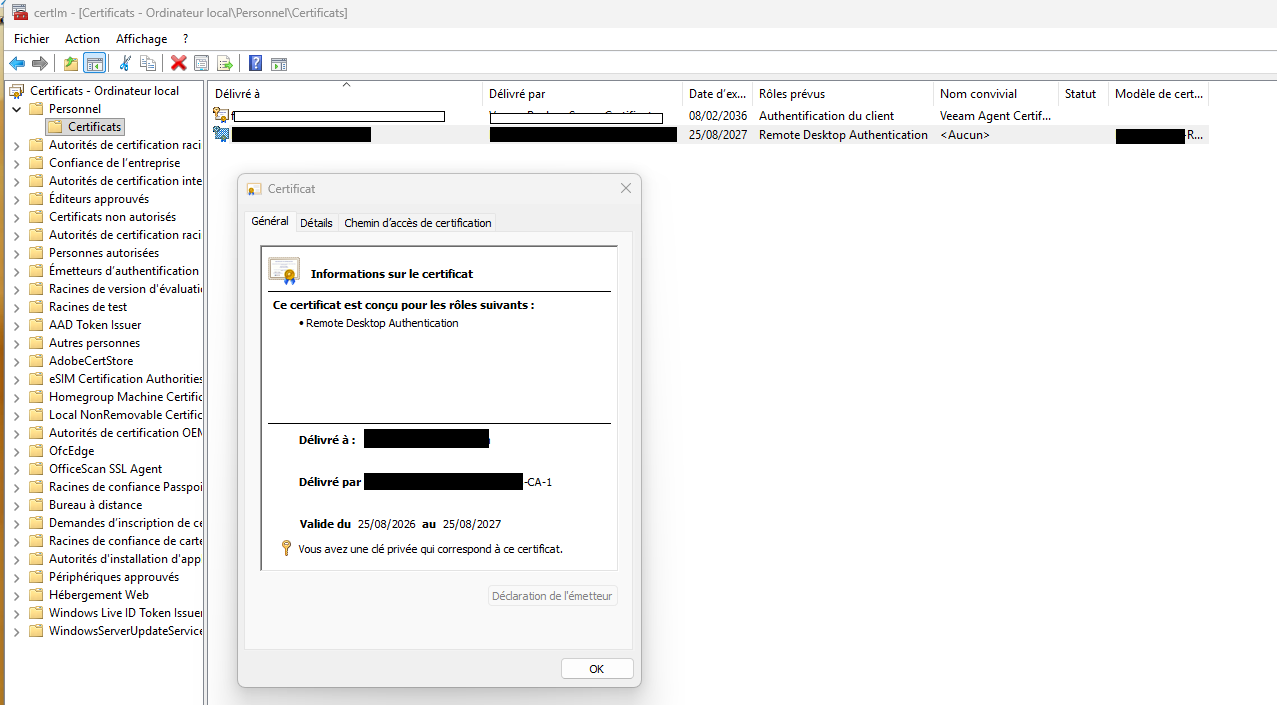
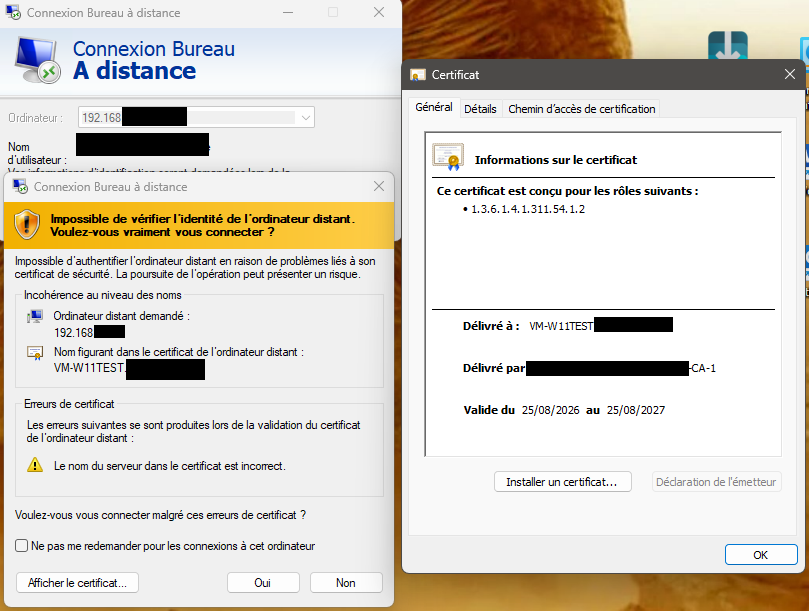
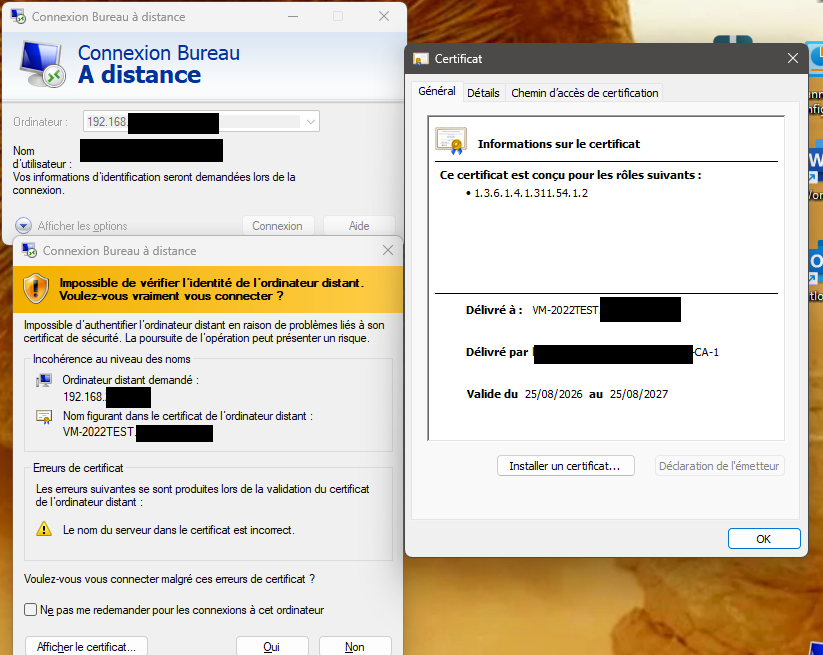
- RDP connection to the test machine—verify on the client side that the presented certificate is indeed the one issued by my internal AD CS (and no longer the self-signed certificate), and that no trust warning appears since the AD CS root certificate is already distributed as trusted on all domain-joined computers. I also tested by entering the raw IP address instead of the DNS name: the certificate is still presented correctly (with, as expected, a name warning since the certificate contains the DNS name rather than the IP address) — proof that this is indeed a certificate issued by my internal AD CS, and not a fallback to a self-signed certificate.
- Fallback test: if enrollment fails (simulated by temporarily blocking access to the certificate authority), the service continues to present the old, still-valid certificate rather than switching to the self-signed one—expected and confirmed behavior.
I kept the Server and Workstation GPOs separate for deployment, which allows both phases to proceed independently:

Once this cycle was validated on the two pilot systems, the GPO deployment was gradually expanded: workstations in both domains, then servers, and finally domain controllers (as a precaution, although nothing in the mechanism distinguishes them from other machines). Each wave was followed by a spot check in certlm.msc on a sample of machines rather than the entire fleet—sufficient to quickly identify any GPO propagation anomalies without having to check the ~twenty-five machines one by one.
Key Takeaways
- Having two PKIs coexist is not a flaw to be corrected when both serve non-overlapping needs—merging them would have been more costly in terms of complexity than the benefits it would have provided.
- Certificate-based RDP authentication on AD CS follows a dedicated mechanism (SessionEnv service, specific GPO) that is completely separate from generic autoenrollment—mixing the two disrupts renewal rather than simplifying it.
- The display name of a certificate template is not merely cosmetic: a discrepancy with the technical name can cause a silent reissuance every time the service restarts.
gpupdate /forcedeploys the policy, but does not necessarily restart the service that needs to apply it—a reflex to correct if the expected result does not occur.
This RDP project had a second, more unexpected component: digitally signing the .rdp files themselves to avoid the “unknown publisher” warning introduced by a recent Windows security hardening. This is a sufficiently different topic (JEA, PowerShell Remoting, client-side automation) to warrant its own article—it will be the subject of Part 3.
Sources and References
Documentation and SessionEnv / GPO mechanism:
- Remote Desktop Services enrolling for TLS certificate from an Enterprise CA — description of the SessionEnv service, the "Server authentication certificate template" GPO, and the explicit warning against generic auto-enrollment using this template
- Configuring a certificate template for Remote Desktop (RDP) certificates — Uwe Gradenegger — template configuration and permission recommendations
- Creating RDP Certificates — PKI Solutions — OID for the Remote Desktop Authentication EKU and a warning about autoenrollment
- Using Group Policy to configure RDP cert — NCSU — exact path to the GPO on the Remote Desktop Session Host
- Remote Desktop Session Host Configuration — Microsoft Learn (archive) — Automatic certificate selection logic and the requirement that Display Name = Template Name