Seventh and final layer. We started with the cable, we went through MAC addresses, IP and routing, TCP and ports, and we found that layers 5 and 6 were phantom layers. Here we are at the top.
And the top is where everyone lives. Layer 7 is what you see: the browser loading a page, an email being sent, a domain name being resolved, the machine receiving its IP address at startup. This is the application layer—the only one the user interacts with directly, and by far the richest in protocols.
After four layers that transported bytes without knowing their meaning, we’ve finally arrived where the bytes actually mean something. GET /index.html, A aperturezone.fr, DHCPDISCOVER: these are no longer anonymous packets; they’re sentences.
> The Essentials in 30 Seconds > > - Layer 7 gives meaning to the bytes that the lower layers were blindly transporting. > - DNS translates names into IP addresses. Without it, the Internet would be a list of numbers. “It’s never the network; it’s always the DNS.” > - DHCP automatically assigns IP addresses in four steps: DORA (Discover, Offer, Request, Ack). > - HTTP is stateless: each request is independent. Cookies and sessions are workarounds to get around this. > - HTTPS = HTTP + TLS. The “S” isn’t a protocol; it’s an encryption layer underneath. > - The port is just a convention: 80 for HTTP, 443 for HTTPS, 53 for DNS, 67/68 for DHCP. > - When troubleshooting, we work our way up the stack: the cable works, the IP is correct, TCP connects… and it gets stuck at Layer 7. That’s where the most devious failures hide.
What Layer 7 Really Does
A quick clarification to avoid a common misunderstanding: Layer 7 is not the application itself. Firefox is not “Layer 7.” Layer 7 is the protocol that the application uses to communicate over the network—HTTP for the web, SMTP for email, DNS for name resolution.
This distinction is important: your browser is a program that, among other things, uses HTTP. HTTP is the Layer 7 protocol; the browser is the software that uses it. It’s like how a letter follows the rules of the postal service (the protocol) without being the postal service itself.
What Layer 7 provides—and what the lower layers are unaware of—is semantics. TCP knows how to deliver a reliable stream of bytes between two ports. It doesn’t know that these bytes form a web request, an email, or a DNS query. It’s the application protocol that provides this structure—that specifies, “These bytes are a command, those are data, and here’s how to interpret them.”
Let’s move on to the protocols that matter in everyday life. Three deserve closer attention: DNS, DHCP, and HTTP.
DNS: The Internet’s Directory
The problem it solves.
Computers connect using IP addresses—93.184.216.34. People remember names—aperturezone.fr. The DNS (Domain Name System) acts as the bridge: it translates names into IP addresses. Without it, we’d have to memorize the IP address of every website. It’s the Internet’s phone book, except that it contains billions of entries and is constantly updated.
How it works: recursive resolution.
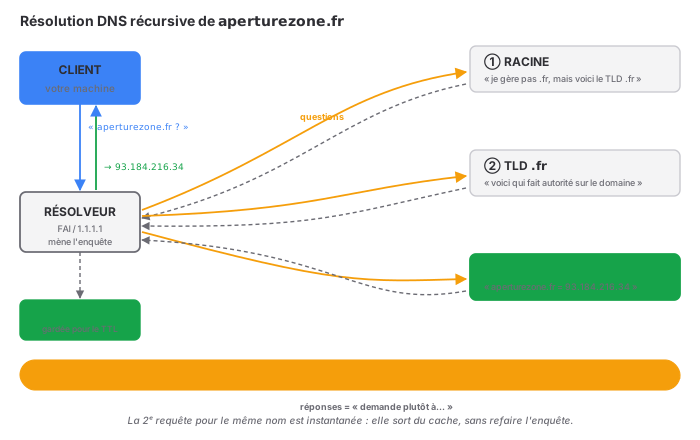
When you type in a name, your computer doesn’t know the answer. It asks a resolver (often your ISP’s, or a public one like 1.1.1.1), which looks it up for you. This lookup follows the name hierarchy, from right to left:
- The root servers: they don’t know
aperturezone.fr, but they know who manages the.frdomain. - The TLD (Top-Level Domain) servers for
.fr: they don’t know the address either, but they know which server is the authoritative server foraperturezone.fr. - The authoritative server for
aperturezone.fr: it has the answer and provides it.
The resolver works its way up the chain, obtains the IP address, sends it back to you, and—crucially—caches it. The next request for the same name will be instantaneous, until the TTL (time-to-live, in seconds) expires.
Record Types You Need to Know.
A domain name does not point to just one IP address. The DNS stores several types of records, and a TSSR must recognize the main ones:
| Type | Role |
|---|---|
| A | name → IPv4 address |
| AAAA | name → IPv6 address |
| CNAME | alias from one name to another |
| MX | domain’s mail server |
| NS | authoritative DNS servers |
| PTR | IP → name (reverse lookup) |
| TXT | free-form text — SPF, DKIM, verifications |
| SOA | zone parameters (serial, TTL, contact) |
The MX record is the one people often forget, which causes emails to fail; the PTR (reverse lookup) is essential to prevent a mail server from being flagged as spam; TXT records now handle all email security (SPF, DKIM, DMARC).
“It’s never the network; it’s always the DNS.”
This phrase is an admin joke, and it’s truer than you might think. A significant number of “network” outages are actually DNS issues: a server that no longer resolves, a poisoned cache, an incorrectly set TTL that delays a migration, or a forgotten record. The classic symptom, as we saw in Layer 3: ping 8.8.8.8 succeeds (the IP works), ping google.com fails (the name doesn’t resolve). Four layers are working perfectly, and it’s the seventh layer that’s causing the problem.
Commands.
dig aperturezone.fr              # the standard command, detailed output
dig aperturezone.fr MX           # query a specific record type
dig +short aperturezone.fr       # just the answer, without the noise
dig -x 93.184.216.34             # reverse lookup (PTR)
nslookup aperturezone.fr         # the original, available everywhere (including Windows)
host aperturezone.fr             # simple and readable
resolvectl query aperturezone.fr # systemd, the local cache
dig is the tool of the trade. dig +short answers in a single line the question “Does this name resolve, and to where?” And when a client says “the site is down,” the first instinct is to run dig on its name: if the lookup fails, the site is working just fine—it’s the DNS.
DHCP: Automatic IP Assignment
The problem it solves.
A machine connecting to the network needs an IP configuration: an address, a subnet mask, a gateway, and a DNS server. Entering this manually on every workstation is unthinkable at scale. DHCP (Dynamic Host Configuration Protocol) automates the entire process: the machine requests, the server assigns.
How it works: DORA.
The exchange takes place in four steps, whose acronym you should memorize—DORA:
- D — Discover: The machine that’s booting up doesn’t have an IP address. It sends a broadcast across the network asking, “Is there a DHCP server?” (It has no other choice—without an IP address, it can’t target anyone in particular).
- O — Offer: The DHCP server responds: “Here’s an IP address I’m offering you, along with the subnet mask, gateway, and DNS.”
- R — Request: The machine formally accepts: “I’ll take that one.” (Also via broadcast, to inform any other DHCP servers that their offer has been declined.)
- A — Acknowledge: The server confirms: “It’s yours for this duration.” This duration is the lease.
From that point on, the machine has its configuration for the duration of the lease. It will attempt to renew it before it expires (at 50% of the duration, it requests it directly from the server that provided it—no need to start all over again).
The connection to the lower layers.
The broadcast Discover is the FF:FF:FF:FF:FF:FF of Layer 2, and the source IP address 0.0.0.0 (“I don’t have an address yet”) of Layer 3. DHCP runs on UDP, ports 67 (server) and 68 (client)—consistent with what we saw in Layer 4: a short transaction that doesn’t require establishing a connection.
The relay trap.
A broadcast does not cross a router (as we saw in Layer 3). So if your DHCP server is on a different subnet than the client—a common scenario in corporate environments with VLANs—the Discover packet never reaches the server. The solution is DHCP relay (ip helper-address on the router or L3 switch): it captures the local broadcast and forwards it via unicast to the remote server. Without it, a machine in a VLAN without a local DHCP server remains without an IP address—and falls back to an APIPA address in the 169.254.x.x range—the symptom we’ve learned to recognize at the Layer 3 level: “DHCP did not respond.”
Commands.
# Linux — obtain / renew a lease
sudo dhclient -v eth0            # request an IP (verbose)
sudo dhclient -r eth0            # release the lease

# Windows
ipconfig /release                # release
ipconfig /renew                  # renew
ipconfig /all                    # view the lease, DHCP server, and duration

# Server-side (Linux ISC / Kea)
journalctl -u isc-dhcp-server    # allocation logs
cat /var/lib/dhcp/dhcpd.leases   # current leases
ipconfig /all on the client side is the go-to diagnostic command: it shows which DHCP server responded and the lease duration. A machine with an address in the 169.254.x.x with “lease expired” in this output indicates an unreachable DHCP server—missing cable, VLAN, or relay.
HTTP: The Web Protocol
What It Is.
HTTP (HyperText Transfer Protocol) is the language of the web. A client (the browser) sends a request, and a server returns a response. It’s a text-based protocol that’s easy to read, which partly explains its dominance.
A basic request looks like this:
GET /index.html HTTP/1.1
Host: aperturezone.fr
User-Agent: Mozilla/5.0
Accept: text/html
And the response:
HTTP/1.1 200 OK
Content-Type: text/html; charset=utf-8
Content-Length: 3421

<!DOCTYPE html>...
Methods.
The first word in the request is the method—what the client wants to do:
| Method | Role |
|---|---|
| GET | read a resource (no side effects) |
| POST | send data (create, submit a form) |
| PUT | replace a resource |
| DELETE | delete |
| HEAD | like GET but without the body (just the headers) |
The GET / POST distinction is the one a TSSR encounters most often: GET places its parameters in the URL (visible, cached, size-limited); POST places them in the body (invisible in the URL, suitable for large or sensitive data). A password is sent via POST, never via GET.
Status codes.
The response begins with a three-digit code, the first digit of which indicates the family. Knowing these codes allows you to diagnose a web issue in a second:
| Family | Meaning | Examples |
|---|---|---|
| 1xx | informational | 100 Continue |
| 2xx | success | 200 OK, 201 Created, 204 No Content |
| 3xx | Redirect | 301 Moved Permanently, 302 Found, 304 Not Modified |
| 4xx | Client error | 404 Not Found, 403 Forbidden, 401 Unauthorized |
| 5xx | server error | 500 Internal Error, 502 Bad Gateway, 503 Unavailable |
The most useful distinction: 4xx means it’s the client’s fault (incorrect URL, lack of permissions, authentication failure); 5xx means it’s the server’s fault (crash, overload, unreachable backend). When faced with a 502 Bad Gateway, there’s no need to check the client’s URL—the web server can’t reach the service behind it. When you see a 404, the URL is the problem, not the server. A single digit guides the entire diagnosis.
HTTP is stateless—and why that matters.
Key point: HTTP retains no state from one request to the next. Each request is treated as if it were the first; the server doesn’t “know” that you loaded the previous page. This is what’s called stateless.
This poses an obvious problem: how does a website keep you logged in from one page to the next, if every request has no memory? The answer is cookies: a small token that the server sends to the browser, which the browser sends back with every subsequent request. The server recognizes the token and retrieves your session. Cookies, tokens, sessions—all of these exist solely to work around HTTP’s lack of memory. It’s a brilliant workaround for a protocol that’s intentionally forgetful—intentionally, because statelessness is precisely what allows HTTP to scale to billions of requests.
The commands.
curl -I https://aperturezone.fr           # just the headers (HEAD method)
curl -v https://aperturezone.fr           # the entire conversation, including TLS
curl -L https://aperturezone.fr           # follow 3xx redirects
curl -X POST -d "field=value" https://... # send a POST
wget https://aperturezone.fr/fichier      # download
curl -I is the quick test: it shows the status code and headers without downloading the page. curl -v logs the entire conversation—the TLS negotiation, the request, the response—and is the tool that distinguishes between “the server isn’t responding” and “the server is responding but with an error.”
HTTPS and TLS: the padlock
What the S adds.
HTTPS isn’t a different protocol from HTTP. It’s HTTP + TLS: the same application protocol, but carried through an encrypted tunnel. The S stands for Secure, and this “secure” aspect is entirely the work of TLS—that “phantom layer” we encountered in layers 5–6, which encrypts data without truly belonging to any layer of the model.
In practical terms, the stack for a secure web page, from bottom to top:
HTTP          ← the request (layer 7)
TLS           ← encryption (the phantom layer)
TCP           ← reliable transport (layer 4)
IP            ← routing (layer 3)
What TLS guarantees.
Three things, not to be confused:
- Confidentiality — no one along the path can read the content. This is encryption.
- Integrity — no one can modify the data in transit without being detected.
- Authentication — you’re actually communicating with the real server, not an imposter. This is the role of the certificate.
This last point is the most misunderstood. The padlock does not say “this site is trustworthy.” It says, “This site is indeed the one its certificate claims it to be, and the communication is encrypted.” A phishing site can have a perfectly valid padlock—it just encrypts the theft of your data. HTTPS protects the transport, not your judgment.
The certificate and the chain of trust.
The server’s certificate is signed by a certification authority (CA) that your browser trusts. This trust is pre-installed: your system comes with a list of trusted root CAs. The server presents its certificate, the browser verifies that it’s signed by a CA it recognizes, and that the certificate’s name matches the domain you’re visiting. If everything checks out, you see a green padlock. Otherwise, a red warning appears—one you should never ignore without knowing why.
The commands.
openssl s_client -connect aperturezone.fr:443           # view the TLS negotiation
openssl s_client -connect aperturezone.fr:443 | openssl x509 -noout -dates  # certificate validity dates
curl -vI https://aperturezone.fr                        # headers + TLS info
openssl s_client is the tool for debugging a certificate: it displays the certificate chain, the validity dates (an expired certificate is an extremely common cause of failure), and the name for which it was issued.
Other Layer 7 Protocols
To round out the picture—these are protocols that a TSSR encounters without necessarily handling them in detail:
| Protocol | Port | Role |
|---|---|---|
| SMTP | 25 / 587 | sending email |
| IMAP | 143 / 993 | viewing email (on the server) |
| POP3 | 110 / 995 | retrieving email (download) |
| FTP | 21 | file transfer (outdated, insecure) |
| SFTP / SCP | 22 | file transfer via SSH |
| SSH | 22 | encrypted remote administration |
| SNMP | 161 | equipment monitoring |
| NTP | 123 | time synchronization |
| LDAP | 389 / 636 | directory (Active Directory) |
Two practical observations. NTP may seem trivial, but an incorrect time breaks Kerberos, invalidates certificates, and causes logs to become inconsistent—it’s a Layer 7 failure with devastating effects. And SMTP/IMAP/POP3 illustrate a common misconception: SMTP sends, while IMAP and POP3 receive; an email client uses both at the same time—one for outgoing, one for incoming.
Layer 7 Security
This is the most exposed layer, because it directly processes user data—and thus the one where an attacker injects their own data. The lower layers transport data; Layer 7 interprets it, and anything that interprets can be deceived.
The major categories of application attacks:
- SQL Injection — the attacker slips SQL code into a form field; if the application naively concatenates the input into its query, it executes the attacker’s code. The solution: prepared statements—never concatenate.
- XSS (Cross-Site Scripting) — the attacker injects JavaScript into a page; it runs in other visitors’ browsers. The solution: systematically escape all output.
- Session hijacking — stealing the session cookie to impersonate a user. The solution:
SecureandHttpOnlycookies, HTTPS everywhere. - DNS spoofing / cache poisoning — poisoning a DNS cache to redirect a domain name to a malicious IP address. The solution: DNSSEC, which cryptographically signs DNS responses.
- Phishing — the most effective Layer 7 attack, because it targets humans, not machines. No technical countermeasure is foolproof; training remains the best defense.
The common thread running through all of the above ties back to the central theme of this series: these protocols were designed when the network was a trusted environment. HTTP, DNS, and SMTP date back to a time when people weren’t suspicious. Security was added on top—HTTPS on top of HTTP, DNSSEC on top of DNS, SPF/DKIM on top of SMTP. It’s always the same story: a naive foundation, with security patches applied after the fact.
Troubleshooting by Working Up the Stack
Here’s the real reward for working through all seven layers: a diagnostic method that works its way up through them one by one. When “it doesn’t work,” you test layer by layer, from the bottom up, and the point where it breaks is the diagnosis.
- Layer 1 — Is the cable plugged in? Is the port LED on? (
ip linkshows the physical status.) - Layer 2 — Does the machine have an active MAC address? Can it see its neighbors? (
ip neigh,arping.) - Layer 3 — Does it have a valid IP address, and can it reach its gateway? (
ip addr,ping<passerelle>.) - Layer 4 — Is the service port responding? (
ss,nc -zv.) - Layer 7 — Does the name resolve, and is the application service responding correctly? (
dig,curl -v.)
The ping sequence for Layer 3 was already a version of this. Here is the complete sequence, from the cable to the application:
ip link show eth0            # 1 — Is the physical link up?
ping          #<ma passerelle=""> 3 — Is my local network working?
ping 8.8.8.8                 # 3 — Can I reach the internet?
dig google.com              # 7 — Does DNS resolve?
curl -I https://google.com  # 7 — Is the HTTP service responding?
The point where the sequence stops indicates the faulty layer. It works up to ping 8.8.8.8, but dig fails → DNS (layer 7). It resolves, but curl returns a 502 → application service (also layer 7, but on the server side). It doesn’t get past the gateway → routing (layer 3). This method condenses the entire series into five lines.
Common Mistakes
- Confusing the application with the protocol. Firefox isn’t Layer 7; HTTP is. Firefox uses HTTP.
- Believing that the HTTPS padlock guarantees a trustworthy site. It guarantees encryption and the certificate’s identity, not the site’s intentions.
- Forgetting about DNS during troubleshooting. “ “It’s never the network”—check resolution before blaming the cable.
- Confusing 4xx and 5xx errors. 4xx = client error (URL, permissions); 5xx = server error. You don’t look in the same place.
- Passing a password via GET. It ends up in the URL, logs, and history. Sensitive data should be sent via POST.
- Neglecting NTP. An incorrect time breaks Kerberos and certificates—a Layer 7 failure with disproportionate effects.
- Forgetting the DHCP relay between VLANs. A broadcast doesn’t cross a router: without
ip helper-address, there’s no IP address in the remote VLAN. - Bypassing a certificate warning without thinking it through. That’s exactly when a man-in-the-middle is waiting for you.
Key Takeaways
- Layer 7 gives meaning to the bytes. The lower layers transported data blindly; here, the data becomes requests, names, leases—sentences.
- DNS is the directory, and the number one suspect. Before blaming the network,
digthe name. Half of all “network” outages are DNS-related. - DHCP stands for DORA: Discover, Offer, Request, Ack. And broadcasts don’t cross routers—hence the need for relaying between VLANs.
- HTTP is stateless. Cookies and sessions are just workarounds to give it a memory it doesn’t have—by design.
- HTTPS = HTTP + TLS. The “S” is an encryption layer underneath, not a separate protocol. The padlock protects the transport, not your judgment.
- HTTP status codes guide everything: 4xx on the client side, 5xx on the server side. One code, one diagnosis.
- Layer 7 is the most exposed, because it interprets user data. Injection, XSS, spoofing: a naive foundation, with security patches on top. Always the same story.
- Troubleshooting works its way up the stack. From the cable to the application, five tests—and where it breaks is the answer.
There you have it. Seven layers, from the electrical signal in a copper wire all the way to the HTTP request that loads this page. We started with a voltage that fluctuates over a twisted-pair cable, and we ended up with GET /osi/layer7/ HTTP/1.1. In between, seven layers, each cleaning up the mess left by the one below it, each completely oblivious to what its neighbor is doing.
That’s what a network is: not a single thing, but a stack. And now, you know it from bottom to top.
Thank you for following the series all the way to the top.
—